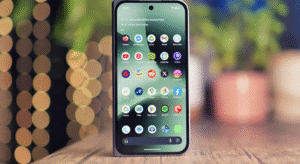
Introduction: Your Phone Has Secrets
So much of your Android phone is like an iceberg underside. There is only the tip that can appear above the waves but there’s an incredible underwater world beneath.
The way most people use their phones remains the same day after busy day. They tap the same apps, swipe through the same screens and never think to ask what else their device can do.
But what if I told you that your Android phone holds secret powers? Secret settings that can make it faster, smarter and more useful than you ever dreamed?
These aren’t complex hacks demanding special skills. They’re features built into the devices that manufacturers hid in menus most people never use.
Think of it as discovering a secret room in your house. It was always there, but you never knew it.
This is a guide for you to locate these hidden treasures. You’ll discover how to transform your typical Android phone into a reality-defying powerhouse that functions precisely the way you need it.
No technical degree required. Curiosity and a sense of adventure is all I had.
What Makes These Settings Hidden?
But before we delve into the secrets, let’s have a look at why these settings are unavailable in the first place.
Phone makers want their devices to be effortless. They’re creating the primary interface for people who just want it to work and not think too much about how.
That’s a good thing, in fact, for most users. Less is more when it comes to a clean, simple interface; less confusion and fewer mistakes.
But for those who require a little more control, these broader settings are akin to discovering a toolbox in the basement. You get to customize everything.
Some settings are hidden because they’re advanced features that might freak beginners out. Others are developer tools for the people who create apps.
Then there’s a few—which sometimes are just strong things that manufacturers would rather not have misused.
No matter the reason, if you know where to look there are features that can make your phone work harder for you.
Developer Options: The Secret Control Panel
Hang out around Android news for awhile, and you’ll eventually hear people start talking about having Developer Options enabled on their devices.
The most well-known secret menu on Android is known as “Developer options.” This is where the true magic occurs.
Most folks never encounter this menu because it’s locked by default. But it takes about 10 seconds to unlock.
How to Unlock Developer Options
Here’s the simple process:
- Open your Settings app
- Scroll down to “About Phone”
- Find “Build Number”
- Tap it seven times in a row
- You should see a message that says “You are now a developer.”
That’s it. You’ve just opened up an entirely new menu, filled with some very strong tools.
Now return to your main Settings screen. You’ll see an addition to the bottom called “Developer Options”.
Top Developer Settings Worth Exploring
I’ll run you through the most helpful settings on this menu.
Animation Speed Controls
Your phone makes tiny little animations every time you open an app or switch between screens. These seem uninterrupted, but they’re also slow.
There are three animations settings in Developer Options:
- Window animation scale
- Transition animation scale
- Animator duration scale
Change each of these from 1x to 0.5x and your phone will feel twice as fast instantly.
Or turn them off entirely by choosing “off.” Your phone will answer as soon as you touch something.
Force GPU Rendering
This is the setting that makes your phone treat its graphics processor like it belongs in a faster, gaming-focused computer. It can make it easier to scroll and apps more responsive.
This isn’t going to work on every phone, but it’s worth a shot if your device is feeling slow.
USB Debugging
This feature allows you to plug your phone in to a computer and do things like install custom software or back up special data.
For most people, this is something you will not need to do every day, but essential if you want complete control over your device.
Background Process Limit
Android allows apps to run in the background even when you’re not using them. This is where you decide how many apps can pull this off at the same time.
Background processes suck your battery dry and could even make your phone faster. But don’t set it too low or other important applications may not work properly.
Secret Screen Features That Fix Everything
Your phone’s display has secret settings that can change everything about the way it looks—not to mention save you a little bit of extra battery power and strain on your eyes.
Night Light on Steroids
Many Android phones also have a simple Night Light feature that cuts back on blue light. But the hidden settings allow you to tweak it just right.
Head to your Display settings and then to Night Light. Then tap the settings icon.
You can tailor the intensity to precisely what feels good for your eyes. You can also have it power up at sunset, too.
On some phones, you can even set up the color temperature separately during different hours of the day.
Screen Resolution Tricks
High-end Android phones typically run at less than their highest possible resolution. This saves battery.
But in Developer Options, you can bypass that and make your phone display things at its full resolution. Everything looks crisper, but your battery life won’t be quite as good.
You can also go the other direction and lower the resolution even more for a few extra hours of life.
Force Dark Mode Everywhere
Android offers a systemwide dark mode, but not all apps support it. Some apps remain glaringly white even after you’ve enabled dark mode.
Finally, check in Developer Options for the setting named “Override force-dark.” Turn this on and Android will forcibly apply dark mode to every app, regardless of whether the app itself supports it officially.
This doesn’t always work perfectly. Some apps will be quite odd looking. But it’s certainly better than bright white screens being blasted into your eyeballs at night.
Battery Optimization Secrets
Battery life is the No. 1 complaint most people have with their phones. These hidden settings can help.
Adaptive Battery Deep Settings
Android’s Adaptive Battery learns which apps you use most and manages power based on this data.
But the conservative settings are defaults. You could make it more aggressive.
Head to Settings, Battery and Adaptive Battery. Find “Restricted apps” or analogous categories.
Here, you will have the option to manually limit apps that you don’t want running in the background. Social media apps are a great use case for this.
They’ll function whenever you open them, but they won’t drain your battery by constantly running in the background just to check for updates.
Battery Usage Statistics
Most users are familiar with the basic battery use screen that displays your apps’ power usage.
But tap on any app in that list and you’ll see detailed statistics about how it affects battery. You can see how long it spends running in the background versus when you’re actively using it.
That helps you single out problem apps that surreptitiously drain battery.
Doze Mode Tweaks
Android also includes a feature called Doze that makes your phone take a nap while you’re away. However, certain apps can work around Doze and continue running.
Now in Developer Options, you can check which apps are unresponsive to Doze. What you see might be surprising.
Network and Connectivity Power Moves
Your phone’s network settings contain hidden features that can enhance your experience, boost your speed and increase reliability.
Forceful Wi-Fi to Mobile Data Transition
Android can switch automatically from Wi-Fi to mobile data if the Wi-Fi connection is weak. But on its own, it bugs out and tries to cling to Wi-Fi even when the signal is abhorrent.
Look for “Aggressive Wi-Fi to Mobile handover” under Developer Options. Turn this on, and your phone will more quickly switch to mobile data whenever Wi-Fi is slow.
It spares you the frustrating times when pages refuse to load because your Wi-Fi is too weak.
Mobile Data Always Active
There’s a setting that will leave your mobile data connection switched on even when Wi-Fi is available. This may seem wasteful, but is much faster when quickly switching between networks.
You step outside and lose Wi-Fi but your phone connects to mobile data in an instant instead of taking agonizing seconds.
Most people won’t find any difference in battery life, but speed is indeed improved.
Bluetooth Audio Codec Selection
This one’s gold if you wear wireless headphones.
Android supports many Bluetooth audio codecs, but usually will select one for you automatically. In Developer Options, you can specify the codec to use manually.
Codecs such as aptX and LDAC provide higher-quality sound than the standard SBC codec. Switching manually can make your music sound a whole lot better, if your headphones support them.
Privacy Options Hidden in the Open
Right now, privacy is front and center in everyone’s minds. These buried settings give you a modicum of control over your data.
Permission Manager Deep Dive
The summary permission settings reveal which apps have permission to use your camera, location and microphone. But there is a more nuanced view.
Settings, Privacy, then Permission Manager. Now tap any permission type.
You will see every app that’s asked for that permission, and whether or not you granted it or denied it. You can also tell when each app last accessed that permission.
This tends to make it easy to catch applications that may be accessing your data when they shouldn’t.
Notification Access Audit
Some apps ask for your permission to read all of your notifications. That, without proper caution over which apps you trust with this power, is a huge privacy risk.
Settings, Apps, Special App Access, Notification Access.
Here you can verify which apps are able to read your notifications. You may be surprised by what you find.
Revoke access for any app that doesn’t absolutely need it.
Background Data Restrictions
Many apps send data back to their servers when you’re not using them. This can be your location, the way in which you use the service and so on.
You can block background data entirely for any app. In Settings, tap Apps, pick a particular app, tap Data Usage and then shut off “Background data.”
The app will behave as usual when you manually open it, but it is not able to communicate with any servers in the background.
Performance Boosting Hidden Features
These settings will have your phone feeling like new again, even if it’s a couple of years old.
GPU Profiling
This allows you to see performance data in real time as colored bars on your screen. It is technical but practical.
In Developer Options look for “Profile GPU Rendering” and set it to “On screen as bars.”
And now you will get colored bars at the bottom to indicate how smoothly your phone is running. If the bars are up a green line, your phone is straining.
This helps you suss out how much of a drag some apps may be.
Limit Background Services
This is analogous to the background process limit, but finer-grained. You can determine specifically how many services it’s okay for apps to run in the background.
The lower you go, the faster your phone gets, and the longer it lasts on a charge. Try starting on the conservative end and adjusting to find your sweet spot if you experience issues.
Force Full Screen Apps
Some of the older apps won’t recognize the tall aspect ratios on modern phone screens. They do have black bars at the top and bottom.
In Developer Options you can forcibly stretch these apps to fill the full screen. It’s not always the prettiest, but it beats wasted screen real estate.
Advanced Sound and Vibration Controls
Audio settings have a mysterious depth that most people never explore.
Separate Volume Controls
You likely already know that you can change volume levels for various things, such as ringtones and media. But there are yet more volume controls hidden away.
Some phones allow you to specify notification volumes depending on the time of day. You can turn notifications down at night, but leave the alarm intact.
Search for “Do Not Disturb” settings and the ability to tweak them.
Vibration Intensity
Many phones allow you to change how strong the vibrations are, but this setting tends to be buried.
Search in Sound settings for “Vibration intensity” or equivalent term. For calls, notifications and touch feedback you can often adjust vibration strength independently.
If your phone buzzes so hard it walks across the table, or you can barely feel it in your pocket, this setting will fix that.
Audio Balance
And that’s important for people who have differences in their hearing in the two ears. Android has a somewhat hidden left and right audio balance feature that can independently adjust the volume of each channel.
Check under settings, in Accessibility, for “Audio balance” or “Hearing enhancements.” No matter which ear is better than the other, you will be able to hear everything equally.
Quick Settings Customization Magic
The Quick Settings panel that shows when you swipe down from the top of your screen is more than just quick settings—it’s also a highly customizable shortcut panel.
Adding Hidden Toggles
Open Quick Settings and find an edit button (usually a pencil icon). This displays all the toggles you can use.
Many phones also come with dozens of toggles built in that you may not see at first glance. You might find toggles for:
- Mobile data on/off
- Sync on/off
- Screen recording
- One-handed mode
- Dark theme
- Focus mode
You can drag the ones you want to keep up into your Quick Settings panel. You can also drag them around to order your favorites first.
Creating Custom Shortcuts
A few Android builds allow you to create and design your own Quick Settings tiles, so that when you tap one, it opens the app or settings page of your choice.
If your phone doesn’t have this built in, search for third-party apps that add the feature: “Custom Quick Settings” apps can make just about anything a tile.
Gesture Navigation Secrets
If you use gesture navigation instead of buttons, there are some hidden settings you can customize.
Gesture Sensitivity
Back gestures are very sensitive, but can be adjusted. If you keep accidentally going back when you mean to pull up menus, you can shrink the gesture area.
This setting can be found in Settings, then System, then Gestures, then System Navigation.
You can modify how much you will need to swipe from the side of the screen to start back swapping.
Double Tap and Swipe Gestures
Some phones also allow for extra gestures not turned on by default:
- Double tap the back of the phone for some actions
- Write letters on the screen when it’s off
- Swipe down on the fingerprint sensor to open or close your notifications tray
Check the Gestures settings to see what your phone supports. The more of these shortcuts you memorize and internalize, the more time you’ll save in the long run.
App-Specific Hidden Powers
Many apps have their own hidden settings that you might like to explore.
Chrome Flags
The Chrome browser has a whole menu of experimental features known as Flags. Input “chrome://flags” into the address bar to open it.
You can enable stuff like:
- Parallel downloading for faster downloads
- Reader mode for distraction-free reading
- Tab groups for better organization
These features are not yet officially released, but they should be good to use on a daily basis. For more tech insights and tutorials, visit Technical Masterminds.
Keyboard Secret Settings
Your keyboard app has secret settings that can improve typing.
In Gboard (the Google keyboard) search for:
- Number row always visible
- One-handed mode
- Glide typing sensitivity
- Emoji suggestions
Other keyboard apps have similarly well-hidden options. Spend a few minutes poking around, and you might discover features that alter the way you type.
System UI Tuner (On Some Phones)
System UI Tuner, an interface customizer for older Android versions, allowed users to tweak the system quite a bit. Some phones still have this.
To see if yours does, pull down Quick Settings and hold on the settings gear icon for about two seconds. System UI Tuner will be unlocked if it is available on your phone.
This menu allows you to manage what status bar icons are visible, controls the navigation bar and more.
This is no longer the case on all modern Android phones, but it’s worth a look.
Creating Your Custom Power Profile
Now that you know about these hidden settings, it’s just a matter of creating custom setup for yourself.
Profile for Maximum Performance
If speed is your priority:
- Reduce or disable animations
- Limit background processes
- Force GPU rendering
- Enable Bluetooth high-quality codecs
- Set aggressive Wi-Fi switching
Your battery won’t last quite as long, but your phone will be super fast.
Profile for Maximum Battery Life
If battery life matters most:
- Limit data used in the background for most apps
- Lower screen resolution
- Reduce vibration intensity
- Limit background services
- Use adaptive battery aggressively
You may sacrifice some convenience, but you will go throughout the entire day easily.
Balanced Profile
Most people want a balance. Choose a sampling of settings from each category that are most important to you.
Perhaps you’re in the mood for quick animations and quality battery life. Or excellent privacy with good performance.
What’s great about those hidden settings is that you can customize the details that are specifically important to you.
Settings Table: Quick Reference Guide
| Feature | Location | Benefit | Trade-off |
|---|---|---|---|
| Animation Speed | Developer Options | Phone feels 2x faster | None |
| Background Process Limit | Developer Options | Better battery, faster phone | Some apps may misbehave |
| Force Dark Mode | Developer Options | Easier on eyes at night | Some apps look odd |
| Adaptive Battery | Battery Settings | Longer battery life | Apps update less frequently |
| Audio Balance | Accessibility | Better sound for hearing differences | None |
| Bluetooth Codec | Developer Options | Better audio quality | Slightly more battery use |
| Permission Manager | Privacy Settings | More privacy control | Requires manual setup |
| Quick Settings Edit | Quick Settings Panel | Faster access to controls | None |
Common Mistakes to Avoid
As you explore these options, keep in mind these pitfalls.
Don’t disable everything at once. Only change one or two of them at a time, so you know what effect each is having.
Don’t restrict the apps you really need. If you limit background data for your email app, you won’t receive notifications.
Don’t ignore warnings. If a setting makes a note that says “for developers only,” be even more cautious. Most are harmless, but a few can be troublesome.
Don’t forget to reboot. Certain customizations only kick in after you’ve restarted your phone.
Don’t panic if something breaks. You can always go back and set things to the way they were.
FAQs
Do these options void my warranty?
No. These are built-in Android features. You’re not rooting your phone or running custom software. It is all safe and reversible.
Can I possibly brick my phone if I’m screwing around with these settings?
It’s extremely unlikely. At the worst, an app might not work correctly. If you have issues, just switch the setting back.
So why don’t phone manufacturers make these features available by default?
They are attempting to keep it simple for the majority of users. Those settings provide the opportunity to control, but they also introduce complexity.
Will changing these settings turn my old phone into a new one?
They’ll definitely help. Minimizing animations and background processes can make even a three-year-old phone seem so much faster. But don’t expect miracles on really old hardware.
Do you have to be tech-savvy to use them?
Not at all. If you’re able to adjust basic settings on your phone, you should be able to handle these. Just do it slowly and change one thing at a time.
Can I revert changes if I don’t like them?
Simply return to that setting and reverse the change. You can also search online for the default values, in case you forget what they were.
If I restrict apps, will the apps stop working?
The apps will still operate after you open them. Only you can decide when limiting background activity is worth potentially keeping notifications at bay. Begin with the apps that you don’t require immediate notifications from.
Is the security of my phone compromised by turning on Developer Options?
Just opening the menu doesn’t change security. But certain features inside it could, if carelessly wielded. The settings as shown in this guide will work great, so just stick to that.
Conclusion: Your Phone, Your Way
Your phone is more powerful than you think. Those buried settings aren’t there to trip you up. They’re tools waiting to see what you can do with them.
Not all of the settings discussed here need to be tweaked. Choose ones that solve problems you really have.
Perhaps your handset is sluggish. Or your battery gets you only to midafternoon. Or you’re just more concerned about privacy.
There’s probably a secret setting that will help with whatever is bugging you.
The best part? You can experiment without risk. There’s nothing here that will damage your phone. If something looks unpleasant, just change it back.
Consider your phone a tool that’s supposed to work for you, not the other way around. These secret settings will make that possible.
Begin with one or two changes today. See how they feel. Then play around a bit as you get the hang of it.
Your Android phone has not been playing its best game. It’s time to fulfill its potential.
The alchemy isn’t magic. It’s simply about knowing where to look and having the courage to try something different.
Your power tools have been hiding in plain sight the entire time. Now you know where they are.
Now go, and make that device sound exciting. The secret settings are just waiting for you to find them.
For more information on Android customization and optimization, check out Android’s official developer documentation.